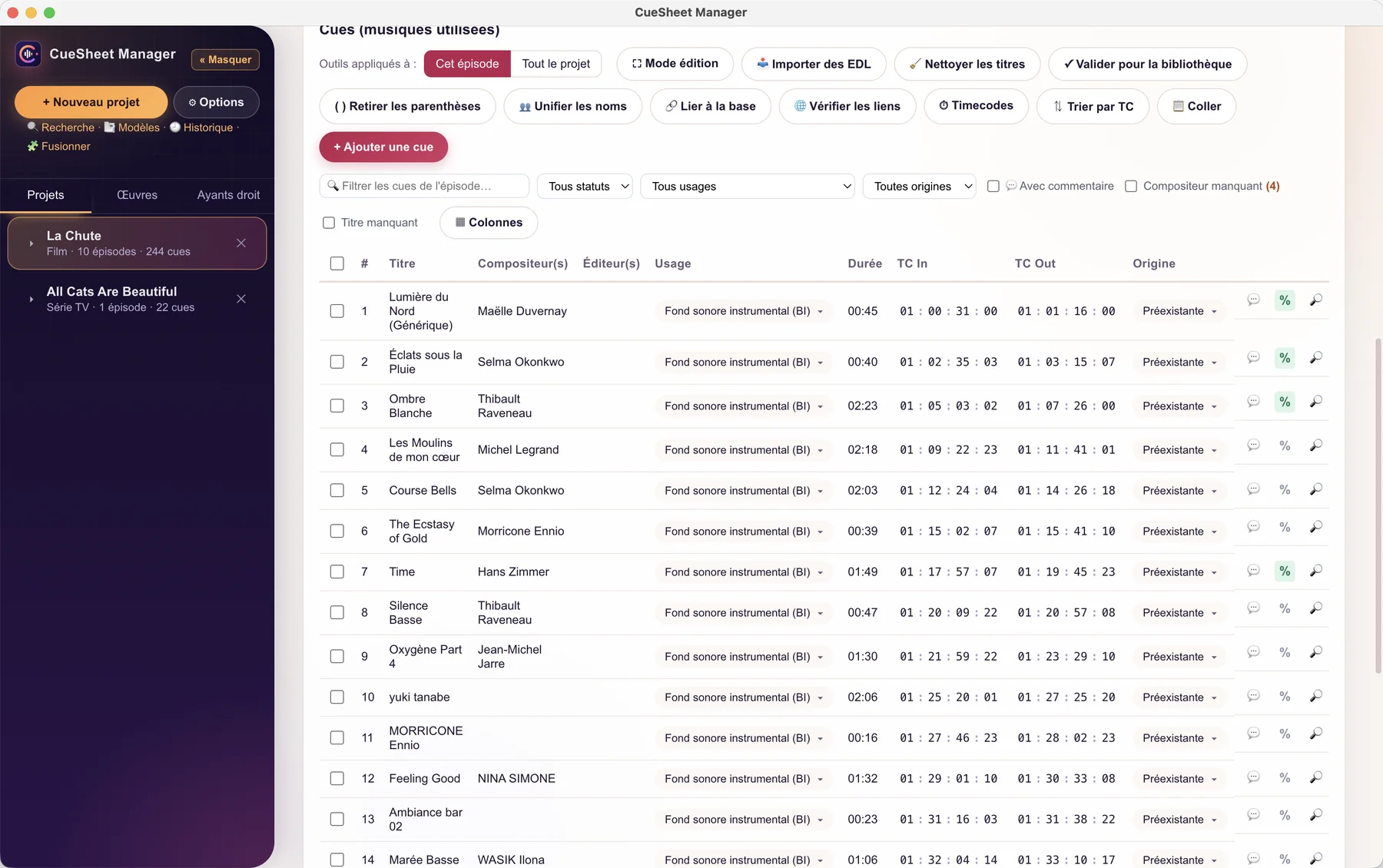
From the edit to the declaration, without retyping a thing.
CueSheet Manager imports your edit, cleans up clip names, finds your rights holders, checks the project, then fills in the SACEM statement on its own template, or an ASCAP/BMI cue sheet. Everything stays on your computer.
macOS and WindowsFreeWorks offline, no accountFrench and English
Screenshot of CueSheet Manager on macOS.
How it works
Five steps between your edit and a file ready to send
A cue sheet made by hand means dozens of titles to retype, composers to track down and percentages to recalculate. Here, every step is a button.
Import
Drop your edit onto the window: EDL, AAF, XML, FCPXML, ALE or Resolve markers. The format is recognised from the content.
Clean up
File extensions, channels, take numbers and technical tags disappear from titles. “Variation 2” and “Part 3” are left intact.
Link
Cues find their composers, publishers, IPI codes and splits in your database. When in doubt, the software asks instead of guessing.
Check
The check lists, cue by cue, what is missing or contradictory: shares not adding up to 100%, overlapping timecodes, empty required fields.
Export
PDF, Excel or CSV, in five layouts, including the SACEM statement. Several files at once, in the folder of your choice.
Features
Made for people who actually prepare the declarations
Edit import
EDL CMX3600, Pro Tools, AAF, Premiere and Final Cut 7 XML, FCPXML, Avid ALE and DaVinci Resolve markers. A window shows tracks, short cues and duplicates before anything is added.
Check before export
Errors and warnings by episode and by cue, according to the target template. You fix them in place, without leaving the list. The check runs again at every export.
SACEM statement on the SACEM template
The exported Excel file is the “Relevé des œuvres musicales” published by SACEM, filled in for you, one sheet per episode.
Title and name cleanup
Technical numbers and suffixes removed, “Composer - Title” split apart, names unified despite case, accents or word order. Every operation has its own report and can be undone.
Timecodes and frame rates
Frame rate per project, drop-frame included. Duration calculated from the timecodes, typed on the numeric keypad, bulk offset, absolute or relative to programme start display.
Projects, episodes, templates
A whole series fits in one project. Reorderable episode tabs, duplication, project templates, merging two projects, exporting only some episodes.
A table that bends to you
Direct editing, filters, columns of your choice, bulk fill, draft, checked or sent statuses, comments. The table stays smooth up to 5,000 cues.
A library under your control
A work entered once comes back with its rights holders and percentages. Nothing enters without your approval, and a tool spots duplicates.
Rights holder database
IPI, collecting society among about sixty, member number, ISNI and aliases. Code formats are checked, duplicates can be merged.
Checked splits
Eleven roles, from composer to sub-publisher, with an optional territory per share. The % button turns green when the total reaches 100%.
Licences and neighbouring rights
Licence number, library, territory and term for pre-existing music. Performer, phonogram producer and neighbouring rights society, with their dedicated export.
Careful linking
Exact match: linked without asking. Similar title or extra artists: suggested, with the reason, and you confirm.
Signature and stamp
Draw your signature or import it, add a stamp. When exporting a statement, a window offers “Done at…, on…” and applies them if you wish.
Undo, redo, versions
A hundred undo steps on the open project, automatic saving and dated copies of the project to restore in one click.
Global search
One shortcut searches all projects, episodes, cues and comments, as well as the library and rights holders.
Online search and links
On request, MusicBrainz suggests ISWC, ISRC, creators and IPI. Another tool tests the web links of your cues. Nothing is applied without your click.
Light or dark theme
Light, dark or following the system. Exported files always stay on a light background. Animations can be turned off.
Guided tour
An eleven-step tour, tooltips with each button’s shortcut, an interface in French or English and customisable shortcuts.
Who it’s for
A local tool for the SACEM statement, not an online platform
Better to know before you install it.
Made for you if…
you have to hand in a SACEM statement, or an ASCAP/BMI cue sheet, from an edit;
your projects are confidential and must not go to a server;
you want no account, no subscription and to pay nothing;
you reuse the same works and the same rights holders from one project to the next;
you are comfortable working in French or English: the interface is available in both.
Not for you if…
you expect a pre-filled catalogue of tracks: the library is yours, and you build it;
you want several people to work online on the same project;
you are looking for a plug-in built into your editing or mixing software;
you want the filing with the collecting society to be done for you.
Try it
Two of the software’s tools, to try here
These simplified demos use the application’s rules. Nothing you type leaves this page.
Cleaning up a clip name
Composer
Title
Checking a split
Total:
In the application, each line also carries the rights holder’s IPI and society, and the export produces one line per rights holder.
Exports
Five layouts, three formats, a check before every export
“Export several…” writes all the ticked files into one folder. You can export only some episodes.
Layout
Content
PDF
Excel
CSV
SACEM / SDRM
The Excel file is the template published by SACEM, “Relevé des œuvres musicales du film ou de l’épisode de série”, filled in for you. The PDF has the same data in the software’s own layout.
✓
✓
✓
ASCAP / BMI
“Music Cue Sheet”: Program Title, Episode, Network, Air Date, Prepared By, then Cue Title, Role, Name, IPI, PRO, Share %, Use, Timing.
✓
✓
✓
Neighbouring rights
Performer, phonogram producer, neighbouring rights society, ISRC and label. Generic layout.
✓
✓
✓
Full
All columns, one line per rights holder, licences included. Ideal for a spreadsheet or for archiving.
✓
✓
✓
Basic
Composer, title, TC In, TC Out, duration, publisher. One section per episode.
✓
✓
✓
The SACEM statement follows the template published by SACEM, but neither SACEM, ASCAP nor BMI has validated or approved the files produced. If a filing requires the exact look of the SACEM form, use the Excel file. Exported Excel and CSV files can be imported back into the software. PDFs are A4 landscape, with numbered pages. The works library can also be exported as CWR 2.1, to be checked against CISAC’s official specification before any sending.
Your data
Your projects never leave your machine
Contracts, splits and catalogues are sensitive information. CueSheet Manager was designed from the start to work without a server.
No account
No sign-up, no login, no telemetry. The software collects nothing.
Readable files
One JSON file per project, one for works, one for rights holders. Back them up and sync them however you like.
Internet only when you ask
MusicBrainz search, link testing, checking for a new version: nothing is sent without your click. Error logs stay on your disk.
Download
Free, complete, no account
CueSheet Manager is free. Every feature is there, with no project limit and no sign-up. If the software saves you time, you can support its development with a donation.
CueSheet Manager 1.0.0
Free
macOS 10.15 or later, Intel and Apple Silicon (182 MB)
Windows 10 or 11, 64-bit (81 MB)
No account to create, no key to enter
Interface in French and English
The Google Drive folder contains the Mac installer (.dmg) and the Windows installer (.exe).
Support the project
The software is developed by one person. A donation, of whatever amount you like, helps maintain and improve it. It unlocks nothing: everything is already included.
No activation
The software works as soon as it is installed, offline, with no online check and no licence key.
Your data stays with you
Projects, works and rights holders are files on your computer. They survive a reinstall.
An independent application
It is not signed by Apple or Microsoft: your system asks for your approval the first time you launch it. The guide below shows each screen.
Installation
A warning on first launch, and how to get past it
CueSheet Manager is not signed by Apple or Microsoft. Your system therefore asks for your approval, once. Here is what you will see, and what to click.
On Mac
Install the application
Open the .dmg file and drag CueSheet Manager onto “Applications”. Then open it from Applications.
Click “Done”
macOS shows “Item not opened”. Do not click “Move to Bin”.
Allow it in Settings
Open System Settings › Privacy & Security, scroll down to “Security”, then click “Open Anyway”.
Confirm
In the “Open CueSheet Manager?” window, click “Open Anyway”, then enter your password or use Touch ID if macOS asks.
All done
The application opens, and from now on will open with a double-click, without a warning.
If macOS says the application is “damaged”, the file is not corrupted. Open Terminal, paste xattr -cr "/Applications/CueSheet Manager.app", press Enter, then reopen the application. This command only removes the “downloaded from the Internet” flag.
Labels vary with the macOS version. A “Read me first” PDF with these steps is included in the .dmg.
On Windows
Run the installer
Double-click the downloaded .exe file.
Get past the SmartScreen screen
If the blue “Windows protected your PC” screen appears, click “More info”, then “Run anyway”.
Install
Choose the folder, click Install, then Finish. The installation does not need administrator rights and creates a shortcut on the Desktop.
If your browser blocks the download (“This file isn’t commonly downloaded”), choose ⋯ › Keep › Keep anyway.
Verify your download
Compare the SHA-256 checksum of the file you received with this one. On Mac: shasum -a 256 followed by the file. On Windows: Get-FileHash followed by the file.
No chapter contains this term. Try a shorter word.
Installation
macOS 10.15 Catalina or later, Intel and Apple Silicon Macs: a single CueSheet_Manager_1_0_0.dmgfile, 182 MB.
Windows 10 or 11, 64-bit: the CueSheet_Manager-1_0_0-win-x64.exeinstaller, 81 MB.
No other software is needed. Allow about 180 MB of disk space and a screen of at least 1280 × 800.
The application is not signed by Apple or Microsoft: a warning is shown on first launch. The illustrated steps are in the Installation section of this page.
Uninstall
Mac : quit the application, then drag it from Applications to the Bin.
Windows : Settings › Apps › CueSheet Manager › Uninstall.
Your projects and databases are not deleted. There is no Linux version.
Getting started
Create a project (N): title, production type, production company, country, frame rate. If you are aiming for the SACEM statement, open the detailed sheet and the Declarant block.
Fill in the episode : number, title, director, total duration, video link, programme start. For a series, add episodes with Alt+E.
Import your edit (O or drag and drop), then confirm the “Check the import” window.
Link to the database (L), confirm the approximate matches, then complete the splits until they turn green.
Validate for the library (Alt+B) the complete tracks, to find them again in your next projects.
Check the project (Alt+V) with the profile you want, and fix the errors.
Export : choose the layout, the format and the episodes. For a SACEM or ASCAP/BMI statement, the “Sign the statement” window is optional.
Saving is automatic. An eleven-step tutorial is available in Options › Tutorial.
Projects and episodes
A project corresponds to one production. Thirty-seven types are offered, grouped into Film, Television, Web and streaming, Advertising and brand, Interactive, Other. It contains one or more episodes, shown as tabs. Each episode has its number, title, director, total duration, first broadcast date, programme start and its own video link.
Detailed sheet and declarant
A collapsible panel under the project fields holds the version (initial, revised, final), alternative title, production year, type of exploitation, original language, place of first exploitation, season number, ISAN and EIDR. For an ASCAP/BMI cue sheet, AKA titles, classification and “Cue Sheet Prepared By” are added.
The declarant (name, capacity, company, contact) is remembered and offered in every new project. Fields required by a template carry a red star.
Organise
Reorder episodes : ◀ ▶ arrows, or drag and drop a tab. This also works from the sidebar, even for a project that isn’t open.
Duplicate an episode with the ⧉ button.
Project templates : start from a model project instead of retyping everything.
Merge two projects : an episode with the same number is completed, the others are added.
Episode status : draft, checked or sent, shown by a dot on the tab.
← and → move to the previous or next episode. The sidebar is hidden with B.
Cue table
Cells can be edited directly. The ✎ button opens the full sheet: authors, performer, society, ISWC, ISRC, SACEM work code, audio link, licence, neighbouring rights and notes.
Add a cue : the button or Shift+N adds an empty line, cursor in the title.
Suggestions : as you type a title, works from the library appear. Choosing one fills in composers, publishers and percentages for this cue.
Multiple selection : tick several cues to apply an action to all of them.
Copy, cut, paste between episodes. After a paste, the episode is re-sorted by TC In.
Undo and redo : Z and Shift+Z, up to 100 steps on the open project.
Filters : by text, status, use, origin, comments, missing composer or missing title.
Columns : the “Columns” menu chooses which to display. The choice is remembered in each project.
Bulk fill : on a selection, “Fill…” sets the neighbouring rights society, the track link or the status. Only empty cells are filled, unless you ask to replace.
Global search : K searches all projects, their episodes and cues, comments included, as well as the library and rights holders.
Status and comments : each cue can be marked draft, checked or sent, and annotated. Neither is exported.
Audio player : link an audio file from your disk to a cue, then listen to it with ▶ from the table. If the file is moved, the player tells you.
Edit mode : E leaves only the cues on screen. Esc to leave it.
In a cue’s sheet, the ← → arrows move to the previous or next cue, saving as they go.
Use codes
Code
Meaning
MT
Main title
ET
End title
BI
Background instrumental
BV
Background vocal
VI
Visual instrumental: the source of the music is seen on screen
VV
Visual vocal
LOGO
Logo, jingle
Theorigin has four values: original, pre-existing, music library, public domain. In the lists, stay on a choice to show a tooltip with an explanation and an example.
Timecodes
Project frame rate
It is set in the project sheet: 23.976 · 24 · 25 · 29.97 NDF · 29.97 DF (drop-frame) · 30 frames per second. If you change it when the project already contains timecodes, the software offers to convert them keeping the real position, or to leave them as they are.
Programme start
Each episode has its own programme start, for example 01:00:00:00. You choose to display timecodes as absolute or relative to this start. Exports follow the chosen mode.
Entry
Type only the digits: the colons are inserted for you. 00260000 becomes 00:26:00:00.
A partial entry is completed with zeros when you leave the cell.
Each timecode stays editable by sub-field: hours, minutes, seconds, frames.
Automatic duration
The duration is TC Out minus TC In, drop-frame included, as long as you don’t type it by hand. A manual duration is kept, and marked ⚠ if it differs from the calculation by more than half a second. The ⟳ button recalculates it.
Timecodes tool
Above the table, the Timecodes button opens:
a converter between frames, timecode and seconds;
a bulk offset of plus or minus N frames, seconds or a timecode, on the episode or the selection. It is cancelled entirely if a cue would end up before 00:00:00:00 ;
the switch between absolute and relative display.
Sorting by TC In is run with “Sort by TC” or Shift+T. A cue without a TC In is placed first.
Import
“Import” (O) or a drag and drop onto the window accepts one or more files. The format is recognised from the content.
Edit formats
Format
Extension
What is imported
EDL CMX3600
.edl
Events and clip names (* FROM CLIP NAME:)
Pro Tools “Track/Clip List”
.edl.txt
Clips of each track
AAF
.aaf
Audio track clips, one cue per clip
Final Cut 7 / Premiere XML
.xml
Audio clips of the sequence, stereo pairs merged
FCPXML (Final Cut X, Resolve)
.fcpxml.xml
Audio clips. Compound and multicam clips are not unfolded.
DaVinci Resolve markers
.edl.csv.tsv
A named marker becomes a cue
Avid ALE
.ale
Audio clips, with the source timecodes, not the timeline’s
AAF, XML, FCPXML, ALE and Resolve marker imports were developed on test files, not yet on exports from every editing software. Review the result in the “Check the import” window. The OMF format is not supported.
Frame rate
The proposed frame rate is the project’s. In a CMX3600 EDL, the FCM: DROP FRAME line switches to drop-frame. For Pro Tools, the timecode format declared in the file is used.
Episode detection
The episode number is looked for in the file, track, clip or reel name, for example “EP1” or “Episode 2”. A clip named “Artist - Title” is split: what comes before the first dash becomes the composer.
“Check the import” window
It appears before anything is added. Cancel, ✕ or Esc import nothing.
Tracks (if several tracks are detected): number of cues per track, choice of splitting into episodes or not, episode number editable for each track.
Short cues (if any): cues under one second, with a “Keep” box for each.
Duplicates (if any): same title at the same TC In, to within one frame, in the same episode.
Cue sheets and statements
Excel and CSV files exported by the software can be imported back. An official SACEM statement filled in by hand is read in full: header, declarant, cues, rights holders and codes. Exported PDFs cannot be read back.
Music library licences
A .csv or .pdf licence file provides title, composer, licence number, type, territory, term and library. The PDF must contain a text table, not a scan.
Databases
The rights holder database (Name, Type, IPI, Society, Member no., ISNI, Aliases, Notes) and the works library (Title, Composer(s), Author(s), Publisher(s), Performer, Society, ISWC, ISRC, Split) can be imported from Excel or CSV, without duplicates. Export your database first to get the column template.
Title and name cleanup
The tools act on the episode or on the whole project, depending on the scope selector. Shift + click applies to the whole project. Each operation produces a report, with a link to every modified cue and an “Undo this operation” button.
Clean titles (Alt+N)
Removes trailing numbers stuck on: Title.01, Title_02.
Leaves “Gymnopédie No.1” and “Opus 23” alone. “Variation 1” and “Part 2” are protected.
Remove parentheses (Alt+P)
Deletes what is between parentheses, except mentions of part, variation or title sequence.
Unify names (Alt+U)
Groups names that differ only by case, accents, word order or a comma. Two people with different IPIs are never grouped. You can create the chosen names in the database along the way.
Composer in the title
On import, “Composer - Title” is split. If a person’s name stays in the Title column, the software offers to move it to Composer.
Known limitation: a title containing a comma, such as “Les heures creuses, version longue”, may be wrongly cut. Fix it in the table.
Linking to the database
“Link to database” (L) acts on the selected cues, otherwise on the whole episode.
Exact match : same title, ignoring accents, case and punctuation, and compatible artists. The cue is linked without asking, with the work’s codes and split.
Rights holders : names are matched with the database, aliases included, whatever the word order. If there are several candidates, nothing is linked.
Approximate match : very similar title or extra artists. A “Matches to confirm” window lists the suggestions with their reason. You tick the ones to link.
Cues with the same title : incomplete cues are completed from the most complete cue in the project. If they contradict each other, nothing is changed.
Changing a work’s shares from a cue updates its other occurrences in the project.
Splits
Each cue’s % button opens the share table: name, role, share, IPI, society and territory. It is green when the total is 100%, orange otherwise. Presets, such as 50/50, fill in the shares in one click.
Code
Role
Code
Role
C
Composer
SR
Sub-arranger
A
Author
TR
Translator
CA
Composer-author
E
Publisher
AR
Arranger
SE
Sub-publisher
AD
Adapter
AM
Administrator
SA
Sub-author
Territory per share
The territory column is optional. When empty, the share applies worldwide. You can enter a country, for example “France”, or exclude one with “-Germany”. The check then verifies 100% territory by territory.
A work’s splits can also be edited from the library, with the “% Splits…” button.
Works and rights holders
Nothing enters the library without you
Import, cleanup, linking and automatic saving add no work. A work enters the library in two ways:
from a cue’s sheet or its shares window, by ticking the save-to-library option;
with “Validate for the library”, which lists the tracks of the selection or episode, shows “New work” or “Update” and what is missing. Only complete tracks are ticked by default.
A validated cue stays in sync with its work. Replacing its title detaches it.
Rights holders
Each record holds name, type, IPI, collecting society, member number, ISNI, aliases and notes, and lists the person’s works. About sixty collecting societies are offered with their country, from SACEM to ASCAP.
Maintaining the database
Merge duplicates : same IPI, same ISNI, same name or first and last name swapped. You validate the list, then works and all projects are updated.
Clean the library : lists duplicates and empty records, with one box per deletion.
Back up and restore the database to a file. A restore first writes a safety copy.
Multiple selection : one box per line, Shift + click for a range.
Check links : on request, tests the web links of the cues and shows those that no longer respond. Nothing is downloaded or modified.
Which code identifies what
IPI : a person or a publisher.
ISWC : a work.
ISRC : a recording.
Licences and neighbouring rights
Licence of a piece of music
A cue’s sheet contains a Licence section, opened by default as soon as the origin is not “original”: type (synchronisation, blanket, music library), licence number, library, publisher or label, territory, term and notes. The check flags pre-existing or library music without a licence.
Neighbouring rights
Performer, phonogram producer, neighbouring rights society (SCPP, SPPF, SPRE, ADAMI, SPEDIDAM…) and ISRC are entered in the cue’s or work’s sheet. They follow the work from one project to the next and feed the “Neighbouring rights” export.
SACEM statement
Two fields are used for the statement: the SACEM work code and the link to the audio file, expected for original music.
Online search
A cue’s search button (Shift+F) or a rights holder’s sheet queries MusicBrainz, an open music database. It suggests title, ISWC, ISRC, creators, IPI and ISNI. Searching by artist alone is possible.
Applying a result fills in these fields and prepares the split lines. Percentages remain to be entered.
This feature needs an Internet connection. Coverage is uneven: better for well-known works than for original film music. The service limits the rate to about one request per second. SACEM’s repertoire cannot be searched from the software.
Check the project
The “Check the project” button opens the list of errors and warnings, by episode and by cue. The same check runs before every export.
Check profile : SACEM, ASCAP/BMI, Neighbouring rights, Basic, Full or General. Required fields change with the profile.
“Fix” lets you enter the missing value without leaving the list.
“Go to” opens the episode and flashes the relevant cue or field.
Recheck after fixing, and export the list as CSV.
What is checked
Empty title, original music without a rights holder.
Composer and author shares, or publisher shares, different from 100%.
Invalid ISWC or ISRC, missing collecting society, missing IPI.
TC Out before TC In, timecode that doesn’t exist at the frame rate, overlapping cues, cue outside the programme.
Duration entered different from TC Out minus TC In, total of durations greater than the episode’s duration.
Duplicates: same title at the same TC In.
Required fields of the template: for SACEM, for example, country, director, production year, declarant and audio link for original music.
Missing licence for pre-existing or library music.
If errors remain, a window offers “Fix first” or “Export anyway”. Plain warnings do not block the export, and only alerts specific to the chosen layout and episodes count.
The rules are based on the collecting societies’ reference documents. They do not replace those societies’ own checks.
Exports
Five layouts, each as PDF, Excel or CSV: Basic, SACEM/SDRM, ASCAP/BMI, Full and Neighbouring rights. Each export button has a ▾ menu to choose the format. The same commands exist in the File › Export menu. A window lets you export only some episodes.
SACEM / SDRM statement
The Excel file is the template published by SACEM, “Relevé des œuvres musicales du film ou de l’épisode de série”, filled in identically: one sheet per episode, one block per cue, extended if there are more than three rights holders. Columns: No., title, original music, TC In, TC Out, duration, ISWC, SACEM work code, name, IPI, capacity, share, society, performer, use, audio link. The statement ends with the total durations and the declarant’s signature block.
The PDF has the same data in the software’s own layout. If a filing requires the exact look of the form, use the Excel file.
Only the “original” origin is exported as “Yes” in the Original music column.
Production types are mapped to the template’s five values, and roles to its six capacities.
Durations are in hours, minutes and seconds, without frames.
The other layouts
ASCAP / BMI : “Music Cue Sheet” in English, with AKA titles, classification, “Prepared By” and signature block.
Full : all columns, one line per rights holder, licences and neighbouring rights included. The PDF is printed in column slices.
Neighbouring rights : performer, phonogram producer, society, ISRC and label, in a generic layout.
Export several… : tick the combinations you want, choose a folder. Files are named Title_Type.ext.
PDF : A4 landscape, numbered pages, repeated table headers. Always on a light background, even in dark theme.
Excel : one sheet per episode.
CSV : semicolon separator, UTF-8 encoding readable by Excel.
Exports are not translated: they stay in the language of their template.
Signature and stamp
In Options › Signature and stamp, draw your signature with the mouse, finger or stylus, or import an image, and add a stamp. At every SACEM or ASCAP/BMI export as PDF or Excel, the “Sign the statement” window offers “Done at…, on…” and the signature and stamp boxes. “Export without filling in” remains possible.
This is an image of a signature, not a qualified electronic signature. It is kept separately, never in your projects.
CWR 2.1 export
From the Works tab, “CWR…” writes a .V21 file for the whole library or only for music library works. You enter the sender’s IPI and type. The file is verified after writing.
The CWR format follows the public documentation available. Compare a file with CISAC’s official specification and your society’s requirements before any real sending.
Keyboard shortcuts
Group
Action
Shortcut
File
New project
N
File
Save
S
File
Import
O
File
Options and shortcuts
,
Edit
Undo, redo
ZShift+Z
View
Global search
K
View
Edit mode
E
View
Hide or show the sidebar
B
View
Close the window, otherwise leave edit mode
Esc
Episodes
Previous, next episode
←→
Episodes
Add, duplicate an episode
Alt+EAlt+D
Cues
Add a cue
Shift+N
Cues
Copy, cut, paste
CXV
Cues
Delete the selected cues
⌫
Cues
Sort the episode by TC In
Shift+T
Cues
Link the episode to the database
L
Cues
Search online for the selected cue
Shift+F
Tools
Clean titles
Alt+N
Tools
Remove parentheses
Alt+P
Tools
Unify names
Alt+U
Tools
Validate for the library
Alt+B
Tools
Timecode tools
Alt+T
Tools
Check the project
Alt+V
Tools
Version history
Alt+H
Exports
SACEM/SDRM, ASCAP/BMI, Basic, Full, Neighbouring rights
Shift+SABCD
Exports
Export several layouts and formats
Shift+E
For the first four tools, adding Shift applies the action to the whole project. All shortcuts can be changed in Options › Shortcuts: click the combination, then type the new one. Conflicts and combinations reserved by the system are flagged, and ↺ restores the original value.
Every change is saved about one second later. The Versions window keeps dated copies: at most one every ten minutes, only if the content changed, fifty per project. A restore also keeps the state you are leaving. Deleting a project does not delete its versions. A history also lists the operations carried out, with the number of cues before and after.
Back up
The Works and Rights holders tabs offer “Back up the database…” and “Restore…”. For a full backup, copy the data folder with the application closed, or place it in a file sync service. The software has no online backup.
Settings and updates
Theme
Options › Appearance, or the View › Theme menu: light, dark or automatic, which follows your system setting. Exports always stay on a light background. Animations are turned off in the same place.
Language
Options › Language switches the interface and menus between French and English. Exports stay in the language of their template.
Updates
The software does not update itself and checks nothing at startup. Help › Check for updates… compares your version with the latest published and opens the download page if there is a new one. You then install the new file over the old one: your data is kept.
Help and tutorial
Options › Tutorial restarts the guided tour. Leave the pointer on a button for half a second to show its explanation and shortcut.
Error report
Errors are noted in logs on your disk. Nothing is sent. Help › Save an error report… writes a text file to attach to a support request. It contains technical messages, never the content of your projects. Personal folder paths and email addresses are masked.
Known limitations
Unsigned application: macOS or Windows warning on first launch, and no automatic update.
Installation checked on a recent Mac and on Windows. Intel Macs and older versions of macOS have not yet been checked on real machines.
No direct filing: you send the files to the collecting societies yourself.
Independent software: the files produced have been neither validated nor approved by SACEM, ASCAP, BMI or CISAC.
SACEM’s audiovisual technical sheet and production declaration form are not produced.
The SACEM statement PDF has the software’s own layout. The Excel file is the one in the template’s format.
The Neighbouring rights export is a generic layout, not an official form.
The CWR 2.1 file is to be compared with CISAC’s official specification before any sending.
AAF, XML, FCPXML, ALE and Resolve marker imports developed on test files. OMF import not supported.
The signature applied is an image, not a qualified electronic signature.
Exported PDFs cannot be imported back.
Online search relies on MusicBrainz, whose coverage is uneven. It never fills in percentages.
Undo and redo apply to the open project, not to the library or the rights holder database.
The Splits window aims for 100% across all lines, whereas the check expects 100% for creators and 100% for publishers.
One user at a time, no built-in sync.
Good to know
Before you download
Is it really free?
Yes. There is no paid version, no locked feature, no trial period. Donations are optional and change nothing in the software.
What is a cue sheet?
It is the statement of all the music used in a film, an episode or a commercial: title, timing, duration, use, composers, publishers and each person’s share. Collecting societies use it to pay the rights holders.
Why does my computer show a warning when I open it?
Because the application is not signed by Apple or Microsoft, which requires an annual developer subscription. The warning only appears on first launch. The Installation section shows each screen, and the SHA-256 checksums let you verify that the file you received is the original.
Is there a licence key or an activation?
No. You download the installer and the software works, with no account, no key and no connection.
Is my Mac compatible?
You need macOS 10.15 Catalina or later. The same file works for Intel and Apple Silicon Macs.
How do updates work?
By hand. The Help › Check for updates… menu tells you whether there is a new version and opens the download page. Your data is kept when you reinstall.
How is this different from an online tool?
CueSheet Manager installs on your computer: your projects stay there, it works without a connection and without an account, and it is free. In return, it offers neither a pre-filled catalogue of tracks nor online collaboration.
Does the software send my cue sheets to SACEM?
No. It produces PDF, Excel or CSV files, which you then send through your collecting society’s usual channel.
Are the exports approved by SACEM, ASCAP or BMI?
No. The SACEM statement is the template published by SACEM, filled in by the software, but none of these societies has validated the files produced. CueSheet Manager is independent software, with no link to them.
Which editing software is compatible?
The import reads CMX3600 EDLs and the Pro Tools “Track/Clip List” export, as well as AAF, Premiere and Final Cut 7 XML, FCPXML, Avid ALE and DaVinci Resolve markers. The latter formats were developed on test files: when in doubt, the EDL remains the safest route. The OMF format is not read.
Does the software connect to the Internet?
Only when you ask it to: MusicBrainz search, link testing, checking for a new version. There is no telemetry and nothing is sent automatically.
Where is my data, and what happens if I change computers?
In a folder on your computer, given in the “Data and backup” chapter. Copy that folder to the new machine after installing the software there.
Can I bring over a catalogue I already have in a spreadsheet?
Yes. Export the empty library to get the column template, paste your works into it, then import the file. Same principle for rights holders.
Does the software handle drop-frame?
Yes. The frame rate is set per project, from 23.976 to 30 frames per second, with 29.97 drop-frame or not. Durations take it into account.